
Set Up Your SiBio CKM App
Pick your sensor and phone below for step-by-step instructions. It takes about 5 minutes.
The SiBio CKM app is free.
KS3 on iPhone
The KS3 iPhone app installs through Apple's TestFlight app. Follow these steps in order.
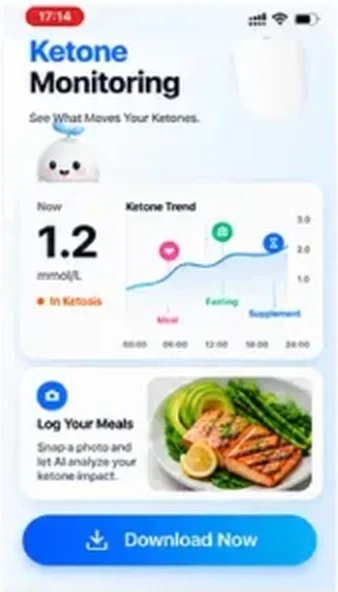
Step 1: Open the download page
Scan the QR code with your iPhone camera, then tap "Download Now".Tap the button below, then tap "Download Now".
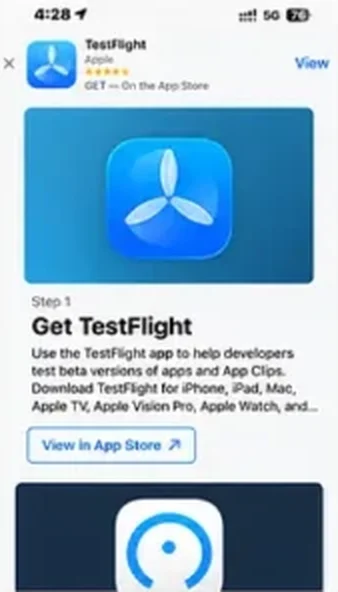
Step 2: Get TestFlight
Tap "View in App Store".
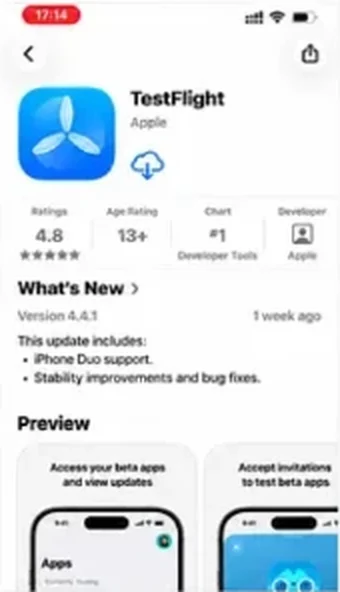
Step 3: Install TestFlight
Download, install, and open TestFlight.
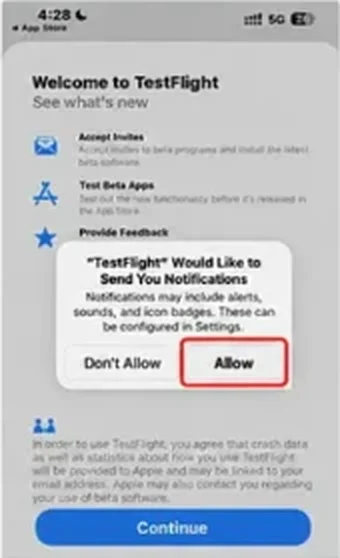
IMPORTANT: Tap "Allow" if prompted, then exit TestFlight immediately. Do NOT tap "Continue" on the TestFlight welcome screen. Then go to Step 4.
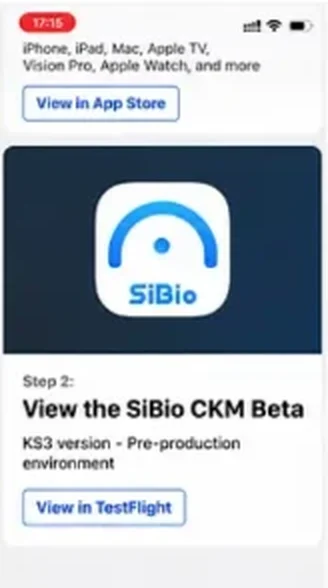
Step 4: Open the beta in TestFlight
Scan the same QR code again, then tap "View in TestFlight".Tap the same button again, then tap "View in TestFlight".
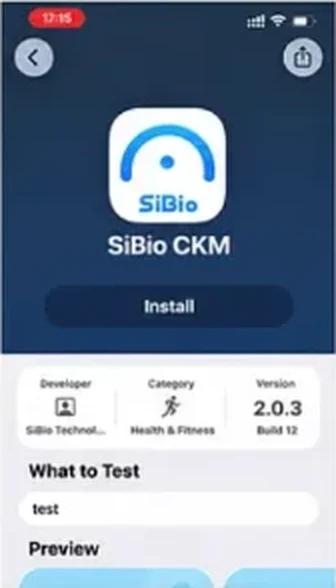
Step 5: Install SiBio CKM
Tap "Install" to install SiBio CKM.
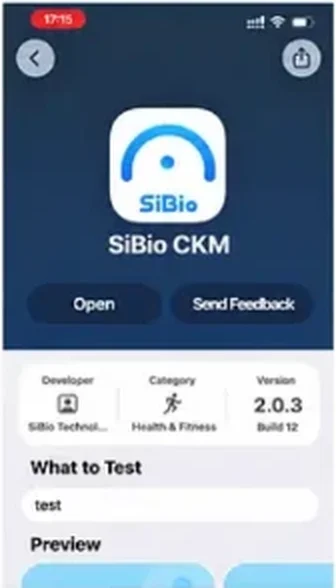
Step 6: Open the app
Tap "Open".
Step 7: Get started
Tap "Get Started" to begin.

Still stuck?
Ask our help chat first. It knows every setup step and answers right away, day or night.
Chat didn't solve it? Our team can walk you through it.
order@ckmonitors.com +1-252-584-2256
Tell us your sensor model (KS1 or KS3) and phone type so we can help faster.